Back

Export your assets using the Download button in V6
11 Jun 2024
If you’re still on V6, you can use the Assets tab to export any assets you’d like to keep.
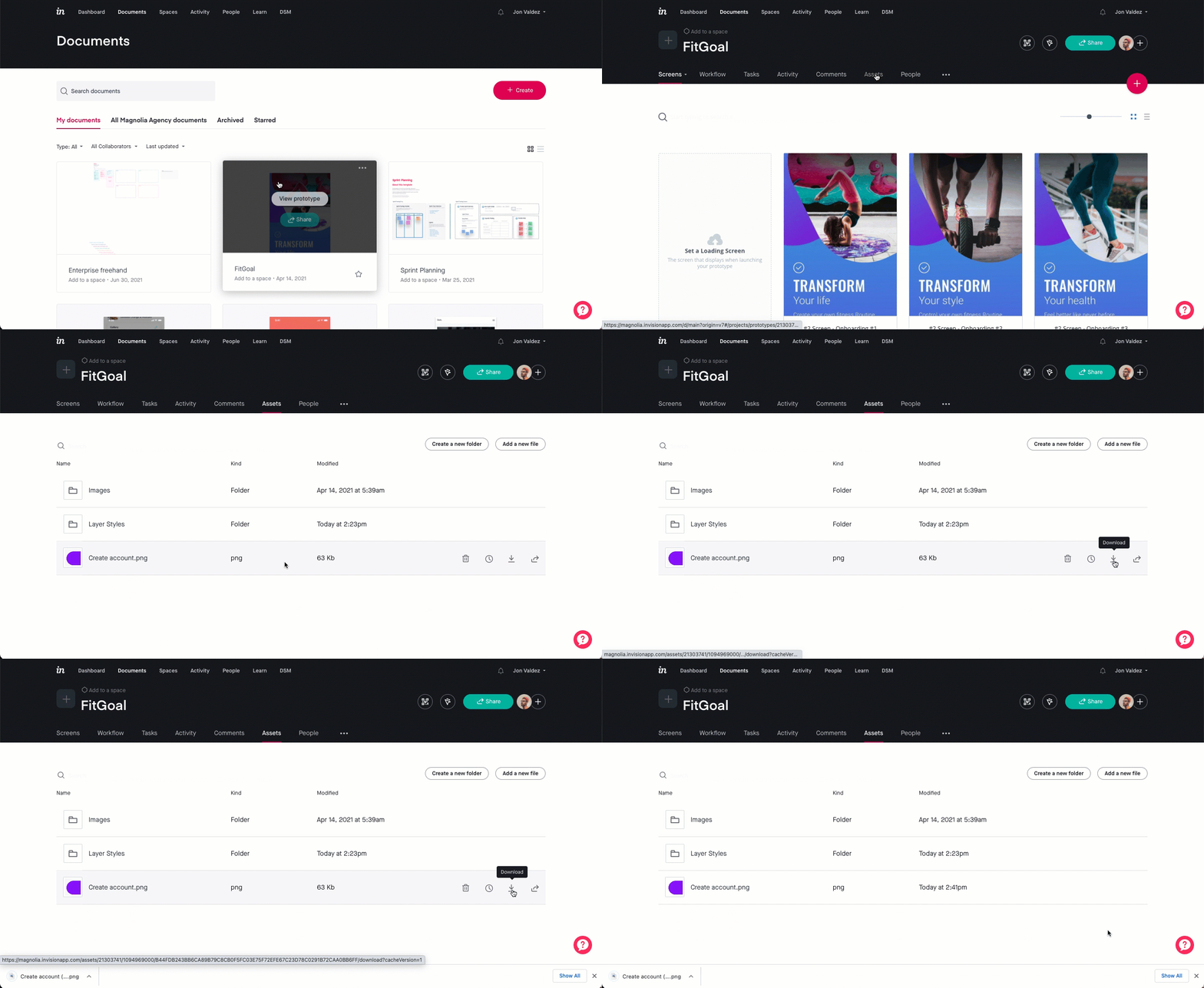
To export your assets:
- Open your prototype and, near the top of the page, click the Assets tab.
- If necessary, use the search function to find a specific asset.
- Note that at this time, you can only search within the current folder. If the item is in a subfolder or a different folder, it won't appear in the search results.
- Once you've found the relevant asset, hover over it and click the Download icon .
Share assets in V7
While the Assets tab isn't a part of InVision V7, there are still different ways you can share assets with your team:
- Inspect: You can still view and download individual or multiple assets via Inspect. To do so, you will need to mark your layers in Sketch for export before syncing.
- Sketch file backup: If you were using the Assets tab to share the source Sketch files with your team, you can enable the Sketch file backup option when syncing with Craft.
- Share links to files and shared folders: You can include links to shared folders and files from your favorite apps—including Adobe XD, Figma, Google Drive, and Asana— to keep all project-related content in one place. Learn more about adding files and shortcuts to InVision .
- Share links to shared folders in Freehand: If you're using Freehand to collaborate with your team, you can also add hyperlinks in text boxes, stickies or cards to shared folders with the needed assets. Learn more about Freehand
Share: